Skip to content

Slooch is taking on its first schools for Term 1 2027.

Book a walkthrough

Switch to Slooch

Switching to Slooch, in seven steps.

Most of the work is the school's lists and rules. Slooch services do the moving with the office.

  • A receptionist with a tablet talking to a visitor across a clean white front desk

    What you replace

    Slooch takes over each one only when the school switches that part on.
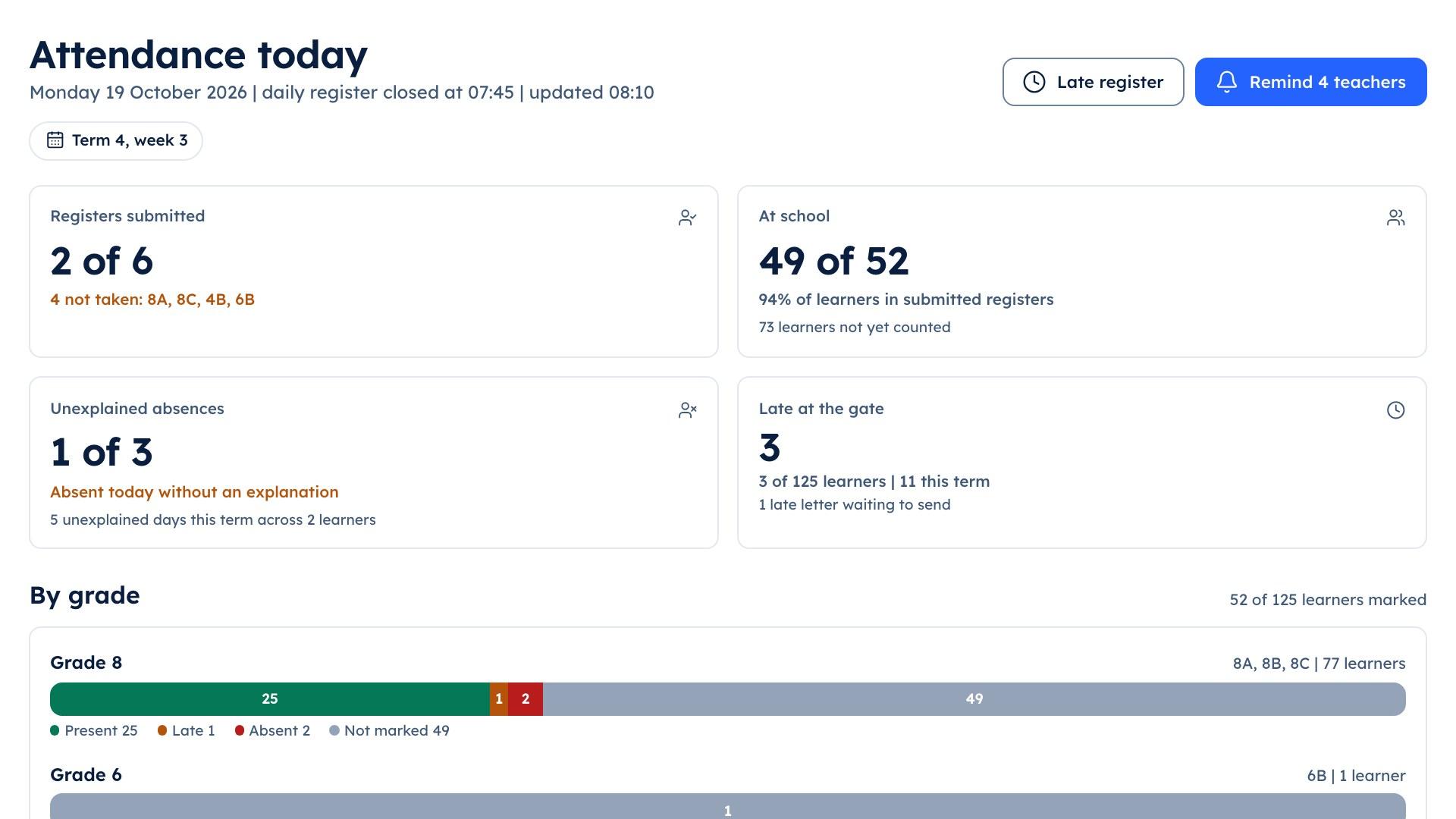
  • The school portal's attendance screen showing which class registers have been submitted

    What Slooch reads from

    Each connection is one the school switches on.
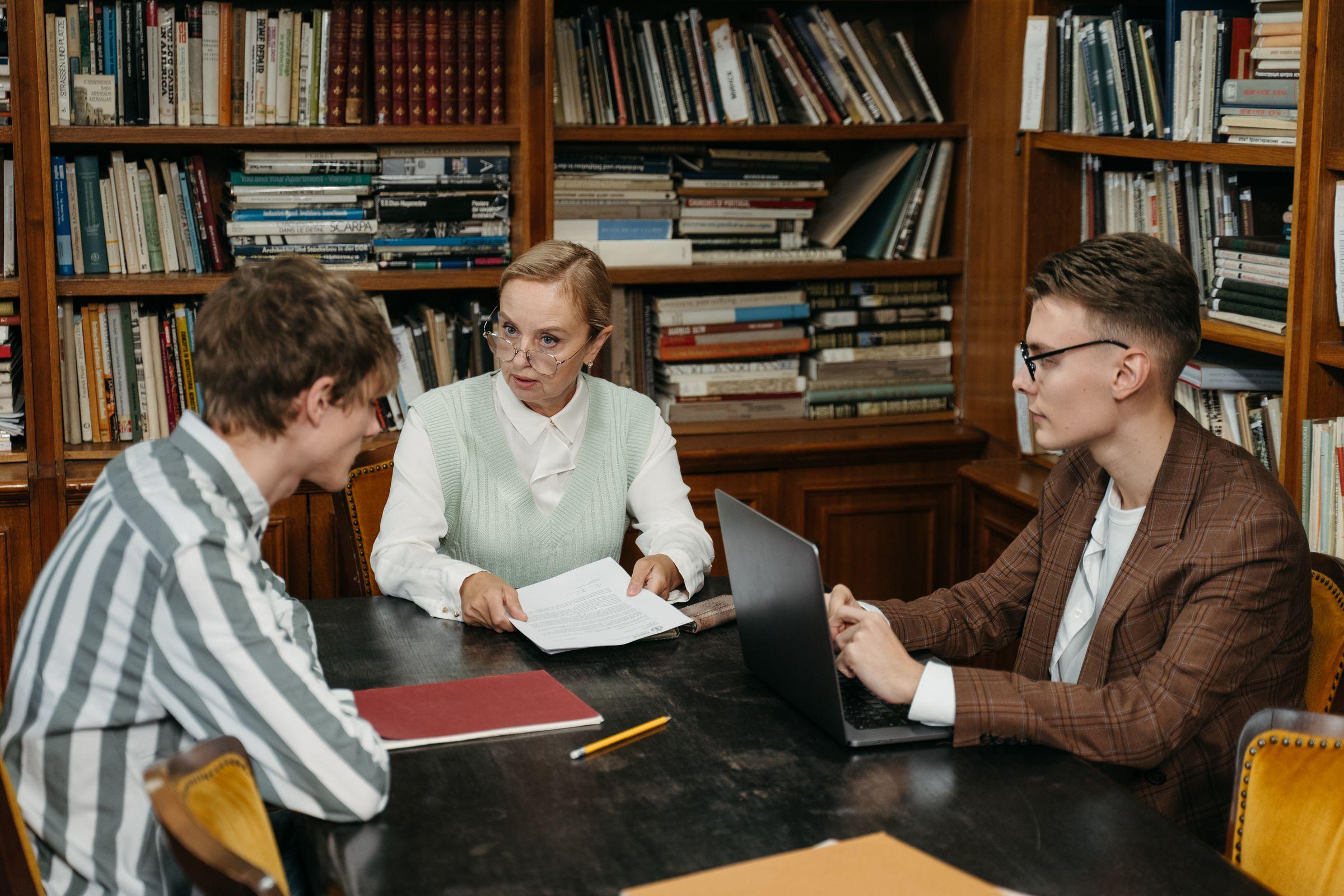
  • Three staff at a table in a book-lined room going over printed sheets, one with a laptop open

    What stays

    Reading, practice and content tools the school already uses stay as they are.

What it replaces

What Slooch takes over

Categories, not products. Slooch takes over each one only when the school switches that part on.

Works with

What Slooch reads from and sends to

Each connection is one the school switches on.

  • Slooch reads from SA-SAMS. Learner, family and staff lists from an SA-SAMS export, used by Notices, Documents, Fees, Register, Admissions, Assessments and Timetable.Built
  • Slooch will read from d6. Learner, family and staff lists from a d6 export, used by Notices, Documents, Register and Assessments.Planned
  • Slooch will read from Ed-Admin. Learner, family and staff lists from an Ed-Admin export, used by Notices, Documents, Register and Assessments.Planned
  • Slooch sends to Xero. Charges and payments, sent to the school's Xero books, used by Fees.Built
What moves where
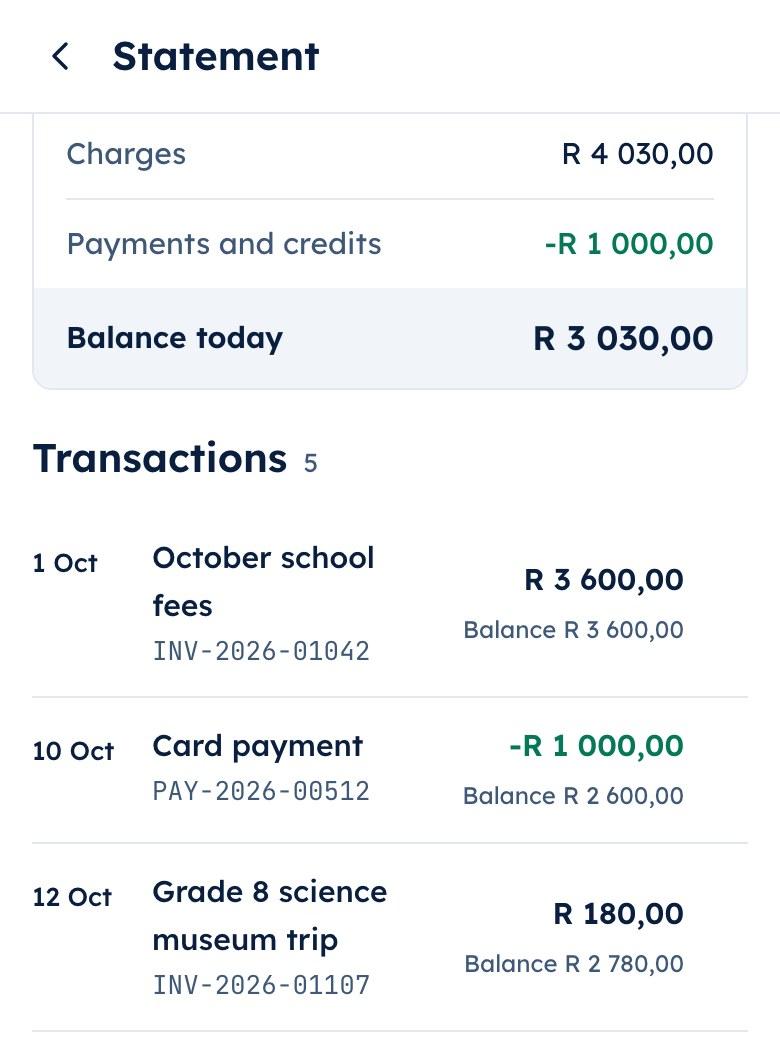
The parent app's family statement listing October school fees, a card payment and the museum trip charge

Family statement

  • Card payment matched
  • Museum trip charge

How it works

The seven steps

From the first conversation to the next part.

Step 1 of 7

The parent app showing the Grade 8 museum trip notice with a consent form and a charge listed under it

Step 1

The walkthrough

The principal, a teacher and the office go through a week at a school on Slooch, and we agree the package that fits.
A teacher in a dark suit standing at the front of a bright classroom with a sheet in his hand while learners in uniform sit at their desks

Step 2

The lists come across

Learner, family and staff lists come from an SA-SAMS export or a spreadsheet, and the office checks them. The d6 import is planned.
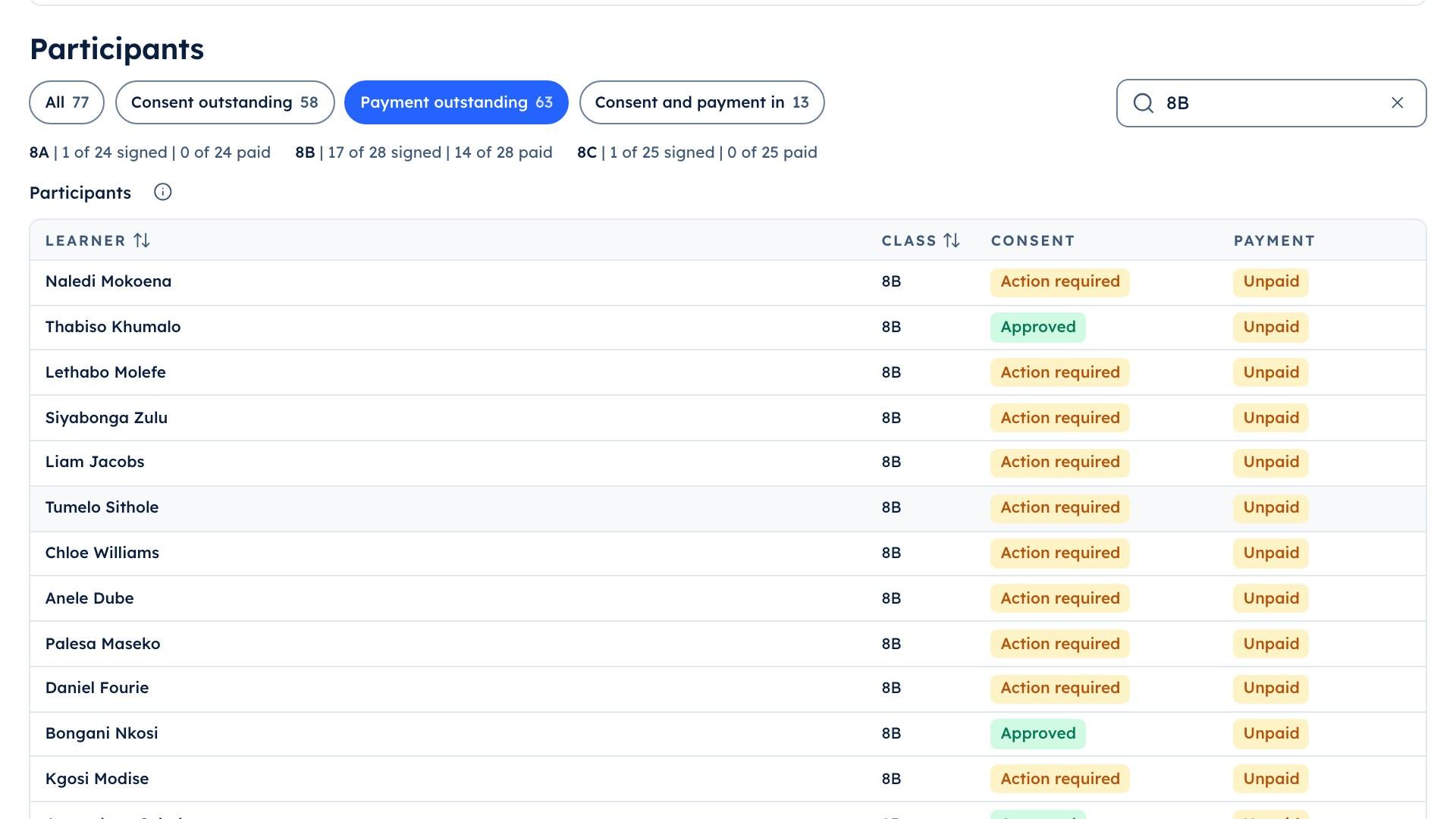
The school portal's trip list for 8B, showing the 14 learners whose trip payment is still outstanding

Step 3

The school's rules go in

Terms, bell times, reply hours, who may send, who approves and who releases, all set before anyone signs in.
A father sitting on the arm of a grey sofa in a light, well-kept living room, reading something on his phone

Step 4

The launch pack goes out

The letter to families, the WhatsApp text for the old groups, the poster with its QR code, the staff note and the welcome notice.
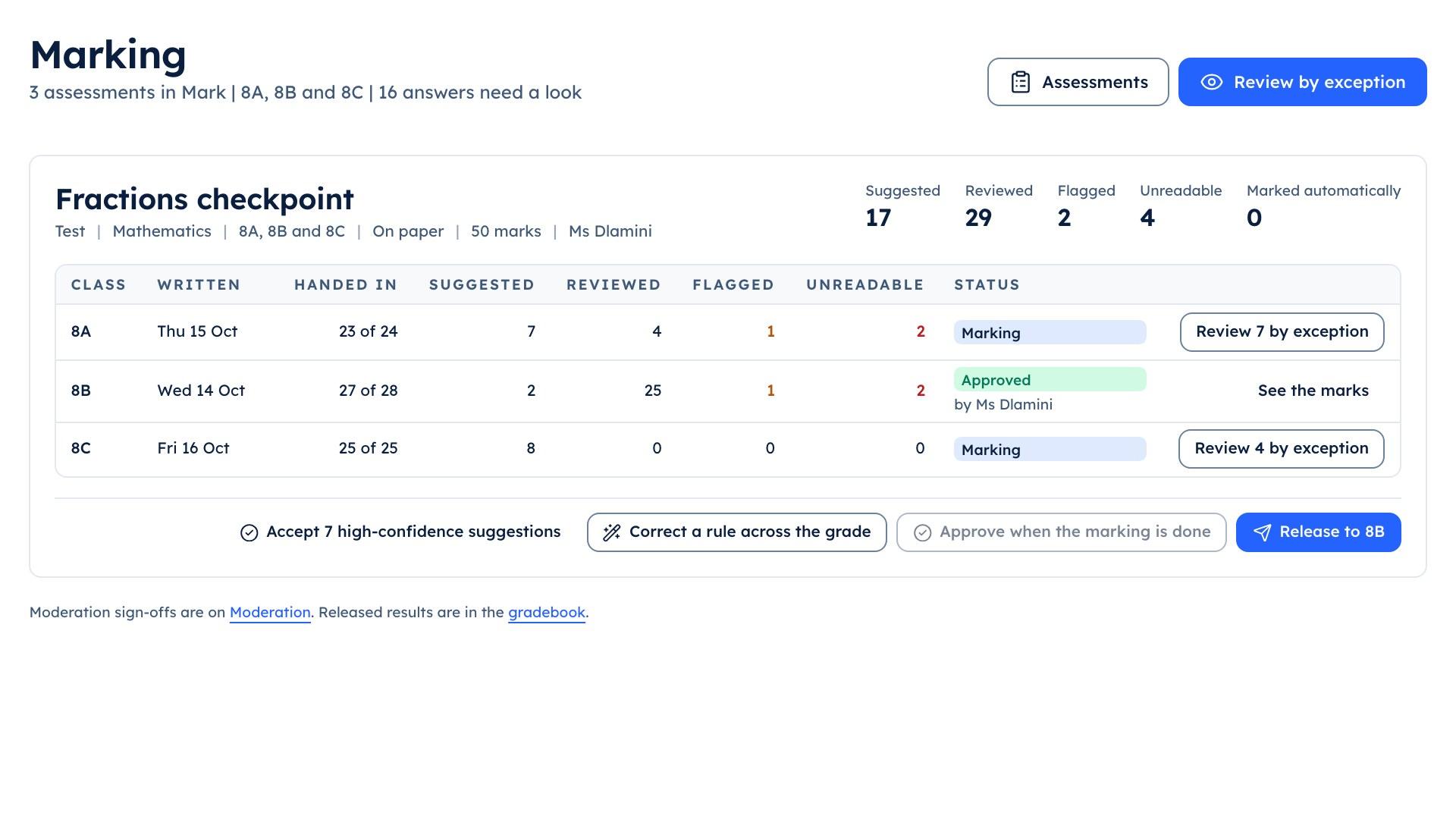
The teacher console's marking queue for the Fractions checkpoint across 8A, 8B and 8C, with suggested, reviewed and flagged counts

Step 5

Staff are trained

Teachers learn the register and messages on their phones; the office learns the portal. Each part's first screen explains itself once.
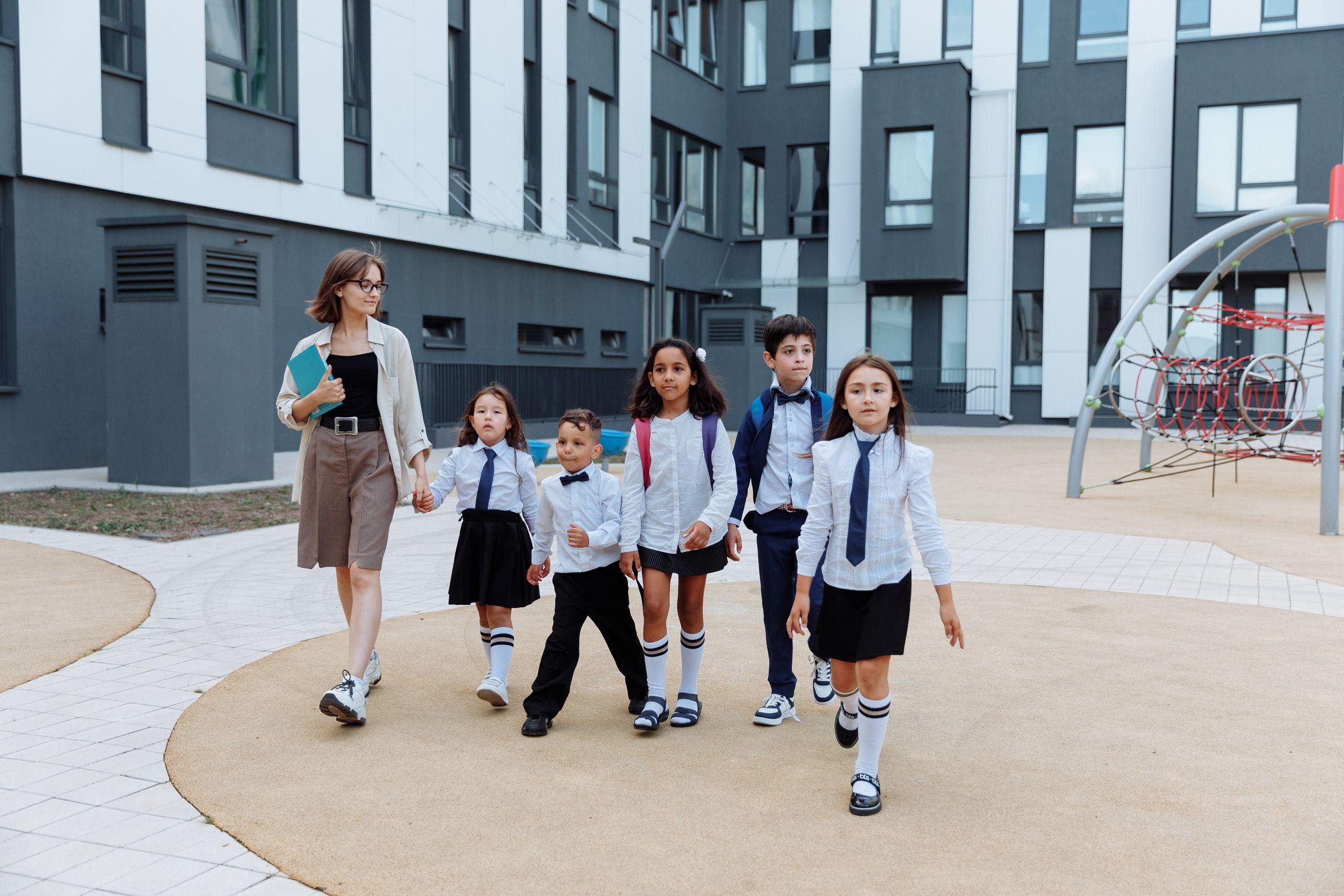
A teacher walking five young learners in white shirts, ties and a navy blazer across a paved school courtyard, a modern school building and a climbing frame behind them

Step 6

The first term

One grade or the whole school, on the package the school chose. The office sees who has been reached and follows up the rest.
The teacher console showing marking work grouped by stage

Step 7

The next part

When the office is ready, the next part is switched on in Settings. Nothing is moved again.

A school can switch in any term. Notices and Documents go live mid-year; Fees and Assessments are easiest to start at the beginning of a term, so balances and mark schedules start in one place.

What stays

What stays where it is

  • SA-SAMS for the department

    SA-SAMS stays the school's official system for the department's returns where the school must keep it. The office gets a list of family details to update there.
  • The school's books

    The accounts stay in the school's Xero books. Slooch sends charges and payments to them.
  • The school's learning content

    Reading, practice and content tools the school already uses stay as they are.
  • The school's own domain

    The school keeps its domain. Its Slooch page can sit on it or at name.slooch.app.